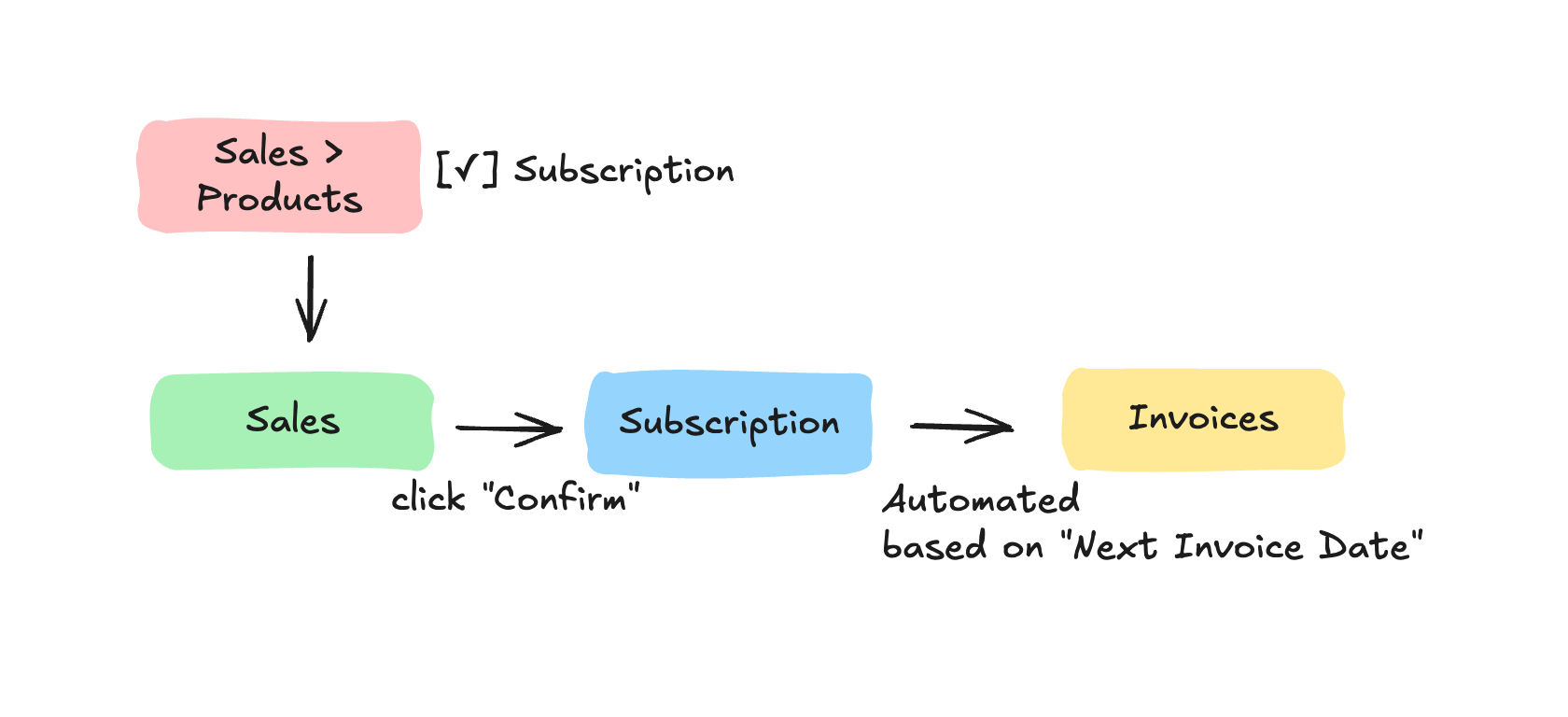
There are various business that relies on a monthly, quarterly, semi-annual (or 6 months) and yearly recurring invoices. The list may include:
- Security or CCTV companies making sure the security equipments are functioning all time, thus a maintenance and routine check every quarter
- Pest control services to make sure their F&B customers are fully compliant to Malaysia's Ministry of Health (MOH) regulations
- Software companies like us to provide regular annual services to support our customers
The pain in the such companies that requires regular invoicing that is done manually based on an excel, invoices can be easily missed. In Odoo you can setup a scheduled Subscription that can allow you to monitor and automatically invoice your customers, do it once and done
SUCCESS STORY:
We are happy to share that we have a successful case study for one of our clients where we automated 1,000 to 1,200 proforma invoices every year, all with a single admin clerk.
What we want to achieve:
Automate invoices creation every month or year
The process in Odoo from Quotation > to automatic Invoices:
1. Setting up the Product~Subscription
The full length documentation is available here: https://www.odoo.com/documentation/18.0/applications/sales/subscriptions.html
But we thought to just stick to some important ones, make sure you check "Subscriptions" checkbox [✓] Subscription
There are two ways to accomplish this, but as Odoo's general practice, both are interrelated:
- from Sales app - A Quotation or Sales Order with a Subscription product is generally a Subscription order. In fact Odoo is smart enough to create the Invoice based on the Subscription Product subsequently
- from Subscription app- any new Subscription starts from a Quotation (or Sales Order)
Some Settings to tweak:
- Other Info > Uncheck "Online Signature"
- Other Info > Uncheck "Online payment" - Don't worry invoices sent will still have a "Pay" button on the email
- Other Info > Start Date - select when the subscription to start, the general rule is that your "Next Invoice Date" cannot be earlier than "Start Date" which makes sense
There are few adjustments to tweak, based on how you want the invoices to be created:
- Next Invoice date - this will be the date when a Scheduled Action will be run (by default every day) to create the Invoices. Please note that Next Invoice date is only available AFTER the Subscription quotation is Confirmed.
- Once a quotation with Subscription product is Confirmed (by clicking Confirm button) you will see a smart "MRR" with value averaged by month. In case you do not know, MRR stands for Monthly Recurring Revenue, which is the monthly revenue brought by the invoice.